

目次
【WordPress対応】Cocoon対応 サイドバー目次を追従

ねこちゃん
ねえ、うさちゃん?
いつから、うさねこ散歩のブログPC版は、スクロールすると右の目次がふわっと動くようになったの?

うさちゃん
うん、あれね、“スクロール追従目次”っていうの~。読者の方が迷わないように、ナチュラルで優しい動きを意識して作ってみたよ✨️
ねこちゃん
確かに、わかりやすいわね。うさちゃんのドヤ顔も見えるようだわ。
うさちゃん
まあね!ドヤァ!
スクロール追従する目次(ふんわりハイライト版)
うさちゃん
「Cocoonテーマをもっとやさしく、心地よく」をコンセプトにしたカスタムシリーズ。
今回紹介する「スクロール追従する目次(ふんわりハイライト版)」を元にした改造版を実際にうさねこ散歩サイトの全記事で使用しています🐰🐱💫

これでできること
- 目次がスクロールに合わせて追従
- 読んでいる見出しがやさしくハイライト
- Cocoon標準の目次構造(
#toc-2)にそのまま対応 - PC専用(スマホでは自動無効)
- 軽量・高速(40ms更新で滑らか)
広告
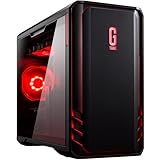
mouse 【 RTX 5060 搭載 / 3年メーカー保証 】 ゲーミングPC デスクトップPC G TUNE DG (Core i5 14400F 16GB メモリ 1TB SSD Windows 11 無線LAN ゲーム 動画編集) DGI5G60B71SJW116AZ
【特長】GeForce RTX 5060 & インテル Core i5 プロセッサー 14400F 搭載 / ゲームプレイから動画配信まで多種多様な用途で活躍するゲーミングデスクトップPC
【OS】Windows 11 Home 64ビット 【Office】なし 【CPU】インテル Core i5 プロセッサー 14400F 【グラフィックス】NVIDIA GeForce RTX 5060 (ビデオメモリ:GDDR7 8GB) 【メモリ】16GB (8GB×2 /DDR5-4800) 【ストレージ】M.2 SSD:1TB (NVMe Gen4×4)
【CPUクーラー】空冷CPUクーラー 【チップセット】インテル B760 チップセット 【電源】750W/AC 100V(50/60Hz)【80PLUS BRONZE】 【無線LAN】Wi-Fi 6E( 最大2.4Gbps )対応 IEEE 802.11 ax/ac/a/b/g/n準拠 + Bluetooth 5内蔵 【有線LAN】1 (背面 1000BASE-T/100BASE-TX/10BASE-T対応(RJ-45)×1 ※WOL対応)
【映像出力】背面:DisplayPort×3 / HDMI×1 【USB Type-C】背面:USB 3.2 Gen 2×2 (20Gbps)×1、上面: USB 3.2 Gen 1 (5Gbps)×1 ※Type-C端子は画像出力に非対応となります。 【USB Type-A】背面:USB 3.2 Gen 1 (5Gbps)×2、USB 2.0×2 ※右側端子のみ常時給電に対応、上面: USB 3.2 Gen 1 (5Gbps)×2 【光学ドライブ】なし
【本体寸法 幅×奥行き×高さ(mm)】約215×490×385 (突起物含む) 【重量】約10.5kg 【保証】3年間センドバック修理保証・24時間×365日電話サポート 【付属品】マニュアル類、保証書、電源コード ※キーボード・マウスは付属しておりません。 【標準付属ソフトウェア】マカフィー リブセーフ 1年版/Steamクライアントソフト
【OS】Windows 11 Home 64ビット 【Office】なし 【CPU】インテル Core i5 プロセッサー 14400F 【グラフィックス】NVIDIA GeForce RTX 5060 (ビデオメモリ:GDDR7 8GB) 【メモリ】16GB (8GB×2 /DDR5-4800) 【ストレージ】M.2 SSD:1TB (NVMe Gen4×4)
【CPUクーラー】空冷CPUクーラー 【チップセット】インテル B760 チップセット 【電源】750W/AC 100V(50/60Hz)【80PLUS BRONZE】 【無線LAN】Wi-Fi 6E( 最大2.4Gbps )対応 IEEE 802.11 ax/ac/a/b/g/n準拠 + Bluetooth 5内蔵 【有線LAN】1 (背面 1000BASE-T/100BASE-TX/10BASE-T対応(RJ-45)×1 ※WOL対応)
【映像出力】背面:DisplayPort×3 / HDMI×1 【USB Type-C】背面:USB 3.2 Gen 2×2 (20Gbps)×1、上面: USB 3.2 Gen 1 (5Gbps)×1 ※Type-C端子は画像出力に非対応となります。 【USB Type-A】背面:USB 3.2 Gen 1 (5Gbps)×2、USB 2.0×2 ※右側端子のみ常時給電に対応、上面: USB 3.2 Gen 1 (5Gbps)×2 【光学ドライブ】なし
【本体寸法 幅×奥行き×高さ(mm)】約215×490×385 (突起物含む) 【重量】約10.5kg 【保証】3年間センドバック修理保証・24時間×365日電話サポート 【付属品】マニュアル類、保証書、電源コード ※キーボード・マウスは付属しておりません。 【標準付属ソフトウェア】マカフィー リブセーフ 1年版/Steamクライアントソフト
最新の価格・在庫状況はAmazonでご確認ください。
設置手順(Cocoon専用)
ステップ①:ウィジェットに設置
うさちゃん
“目次をサイドバーに固定したい人” は、Cocoonウィジェットを使います。
手順
- 「外観 → ウィジェット」 を開く
- サイドバー領域(例:
サイドバー(投稿ページ))を選択 - 「目次(CocoonのTOCウィジェット)」を追加
- タイトル欄に「📖 目次」など好きな名前を入力してもOK
サンプル画面ではプログラム表示と2重表示になるので入力していません。 - 保存して完了!

ステップ②:スクリプトを追加
- WordPressの管理画面 → 外観 → テーマファイルエディター
- 右側で「Cocoon Child(子テーマ)」を選択
javascript.jsを開く- 一番下に以下を貼り付けて保存
// =====================================================
// サイドバー目次追従スクリプト(滑らか版)
// -----------------------------------------------------
// 目的
//   - サイドバー目次(#toc-2)を、スクロール位置に応じて自動でハイライト
//   - 「今読んでいる章」をふんわり強調表示してユーザー体験を向上
// 特徴
//   - PC専用(スマホでは無効)
//   - Cocoonの目次構造(#toc-2 li a)に完全対応
//   - スムーズかつ軽量なスクロール監視(40ms間隔)
//   - ページリサイズやトグル開閉にも自動再計算対応
// =====================================================

// -----------------------------------------------------
// 1. モバイル判定
// -----------------------------------------------------
//   → スマホやタブレットでは、Cocoon標準で目次が折りたたまれることが多いので
//      PC表示のみに限定して動作させる。
if (!/iPhone|Android.+Mobile/.test(navigator.userAgent)) {

  // jQuery準備完了後に実行
  jQuery(function ($) {

    // -------------------------------------------------
    // 2. 主要変数
    // -------------------------------------------------
    const headerLinks = $('#toc-2 li a'); // 目次リンク(各h2/h3へのアンカー)
    let contentsPos = [];                  // 各見出しのスクロール位置情報を保持する配列

    // -------------------------------------------------
    // 🪄 3. 初期化関数:見出しの位置を取得して保存
    // -------------------------------------------------
    function init() {
      contentsPos = []; // リセット(リサイズ時など再計算用)

      headerLinks.each(function (i) {
        const id = $(this).attr('href'); // 例: "#section1"
        const $target = $(id);
        if (!$target.length) return; // 対応する見出しが存在しない場合はスキップ

        // 見出しの上端座標を取得(30px上に余裕を取る)
        const top = $target.offset().top - 30;
        contentsPos[i] = { top, bottom: null };

        // 1つ前の「bottom」(範囲の終端)を現在のtopで決定
        if (i > 0) contentsPos[i - 1].bottom = top;
      });

      // ページ最下部(footer手前)でハイライトが消えるように最終範囲を補正
      const $footer = $('footer');
      if ($footer.length && contentsPos.length) {
        const footerTop = $footer.offset().top - 30;
        contentsPos[contentsPos.length - 1].bottom = footerTop;
      }
    }

    // -------------------------------------------------
    // 4. 現在位置チェック関数
    // -------------------------------------------------
    // スクロール位置(scrollTop)を取得して、
    // どの見出し範囲に入っているかを調べる。
    function currentCheck() {
      const scrollTop = $(window).scrollTop();
      headerLinks.parent().removeClass('current'); // 一旦リセット

      if (!contentsPos.length) return; // 範囲情報がなければ処理しない

      // スクロール位置が最初〜最後の範囲内にあるときのみ処理
      if (
        scrollTop >= contentsPos[0].top &&
        scrollTop < contentsPos[contentsPos.length - 1].bottom
      ) {
        // 現在の位置がどの見出し範囲に属するかを探索
        for (let i = 0; i < contentsPos.length; i++) {
          const c = contentsPos[i];
          if (scrollTop >= c.top && scrollTop < c.bottom) {
            // 一致する範囲が見つかったら、その項目にcurrentを付与
            headerLinks.eq(i).parent().addClass('current');
            break;
          }
        }
      }
    }

    // -------------------------------------------------
    // 5. イベント設定
    // -------------------------------------------------
    // ページ読込・リサイズ時に位置を再計算
    $(window).on('load resize', init);

    // スクロールイベント監視(軽量化+滑らか更新)
    let scrollTimer = null;
    $(window).on('scroll', function () {
      if (scrollTimer) return; // 二重呼び出し防止
      scrollTimer = setTimeout(() => {
        currentCheck();
        scrollTimer = null;
      }, 40); // ← 更新間隔:40ms(約1/25秒)
    });

    // -------------------------------------------------
    // 6. Cocoonのトグル対応
    // -------------------------------------------------
    // Cocoonでは、目次を「開閉できるトグル構造」で出力するため、
    // 開閉後にDOMの位置が変化する。→ 再計算を500ms後に実行。
    $(document).on('change', 'input.toggle-checkbox, input.toc-checkbox', function () {
      setTimeout(init, 500);
    });

  });

}
ステップ③:CSSを追加
次に、外観 → カスタマイズ → 追加CSS に以下を貼り付けます。
/* ==========================================
TOC – Natural Flat Card Edition(Wide Harmony Version)
------------------------------------------
- 外枠の幅を本文いっぱいに近づける
- 内部タイトルと背景を一体化
- hoverやcurrentの演出は自然で柔らかく
========================================== */

/* ----------------------------------------------------
 1. 目次全体(Cocoonの外枠 .toc)
---------------------------------------------------- */
.toc {
  background: linear-gradient(180deg, #fffdf8 0%, #fffaf0 100%);
  /* 淡いオフホワイト~ベージュのグラデーション背景 */
  border: 1px solid #f2e9d9;
  /* 枠線を柔らかいベージュに */
  border-radius: 12px;
  /* カードの角を丸く */
  padding: 1.8em 2em;
  /* 内側余白をやや広めに(タイトルや番号が詰まらない) */
  box-shadow: 0 3px 14px rgba(180, 160, 120, 0.12);
  /* 柔らかい立体感の影 */
  font-family: "Noto Sans JP", "Yu Gothic", sans-serif;
  transition: all 0.35s ease;
  max-width: 100% !important;
  /* 幅制限を解除して本文幅に合わせる */
  width: 100%;
  box-sizing: border-box;
}

/* hover時にほんの少し浮かす */
.toc:hover {
  box-shadow: 0 6px 22px rgba(180, 160, 120, 0.18);
  transform: translateY(-2px);
}

/* ----------------------------------------------------
2. 内部タイトル(例:📘 目次)
---------------------------------------------------- */
#toc-2 .toc-title {
  background: linear-gradient(135deg, #f8f9fa 0%, #fffaf3 100%);
  /* Cocoon標準 #f8f9fa に寄せた柔らかい白グレー基調 */
  color: #3c3a36;
  font-weight: 700;
  font-size: 1.1em;
  padding: 0.8em 1.2em;
  border-radius: 10px;
  margin-bottom: 1em;
  display: flex;
  align-items: center;
  gap: 0.5em;
  letter-spacing: 0.04em;
  box-shadow:
    inset 0 0 4px rgba(255, 255, 255, 0.8),
    0 1px 5px rgba(200, 180, 140, 0.12);
  border-left: 5px solid #d7b97f;
  /* 見出しらしいアクセントライン */
  transition: all 0.35s ease;
  width: 100%;
  /* タイトルもブロック全体に広げる */
}

/* 📘 アイコン装飾 */
#toc-2 .toc-title::before {
  content: "📘";
  font-size: 1.1em;
  opacity: 0.9;
}

/* hover時 */
#toc-2 .toc-title:hover {
  background: linear-gradient(135deg, #fffdf7 0%, #fff4e6 100%);
  border-left-color: #cfa95c;
  box-shadow:
    0 3px 10px rgba(200, 180, 140, 0.25),
    inset 0 0 6px rgba(255, 255, 255, 0.9);
  transform: translateY(-2px);
}

/* ----------------------------------------------------
3. リスト全体の整形
---------------------------------------------------- */
#toc-2 ul {
  margin: 0;
  padding-left: 1.6em;
  /* 階層を少しインデント広めに(見やすく) */
  list-style: decimal;
  line-height: 1.8;
  /* 行間を少し広げて読みやすく */
}

/* ----------------------------------------------------
4. 各目次項目(li)
---------------------------------------------------- */
#toc-2 li {
  margin: 0.25em 0;
  padding: 0.45em 0.7em;
  border-radius: 6px;
  transition:
    background-color 0.4s ease,
    transform 0.4s ease,
    box-shadow 0.4s ease;
}

/* ----------------------------------------------------
5. current(現在位置)項目の強調
---------------------------------------------------- */
#toc-2 li.current {
  background: linear-gradient(135deg, #fffaf0 0%, #f8eedc 100%);
  box-shadow:
    inset 0 0 5px rgba(255, 255, 255, 0.7),
    0 0 8px rgba(210, 190, 150, 0.2);
  border-left: 3px solid #d7b97f;
  transform: translateY(-2px);
}

/* hover時(やや浮かせて発光) */
#toc-2 li.current:hover {
  transform: translateY(-4px);
  background: linear-gradient(135deg, #fff8ed 0%, #f4e7cc 100%);
  box-shadow:
    0 4px 12px rgba(200, 180, 130, 0.35),
    inset 0 0 8px rgba(255, 255, 255, 0.8);
}

/* ----------------------------------------------------
6. 子階層リスト(H3など)
---------------------------------------------------- */
#toc-2 li.current li {
  background-color: rgba(255, 253, 248, 0.8);
  border-radius: 8px;
  padding-left: 1em;
  margin: 3px 0;
}

/* ----------------------------------------------------
7. リンク文字の装飾
---------------------------------------------------- */
#toc-2 li.current a {
  color: #6c5733 !important;
  font-weight: 600;
  text-decoration: none;
}
#toc-2 li.current a:hover {
  color: #8a6a3f !important;
  text-shadow: 0 0 4px rgba(140, 110, 60, 0.25);
}

/* ----------------------------------------------------
8. マーカー(項目前のドット)
---------------------------------------------------- */
#toc-2 li::before {
  content: "•";
  color: #c9b88f;
  margin-right: 6px;
  font-size: 0.9em;
  vertical-align: middle;
}
#toc-2 li.current::before {
  color: #d7b97f;
}
まとめ
- Cocoonにコピペだけで導入OK
- PCでのみ動作(スマホは完全に無効化)
- ウィジェットを使えばサイドバー固定も簡単
- 実際にうさねこ散歩サイトでも使用中!
WordPress+Cocoonを始めるなら「エックスサーバー」がおすすめ!
「これからWordPress+Cocoonでブログを作りたい!」という方には、
国内シェアNo.1の高速レンタルサーバー エックスサーバーがぴったりです。
- 🚀 WordPressクイックスタート対応(最短10分でブログ開設)
- 🪄 Cocoonテーマの自動インストールにも対応
- 🔒 無料独自SSL/高セキュリティ/自動バックアップ完備
- ☁️ 高速SSD・安定稼働率99.99%以上
- 💰️ スタンダード 月額料金 990円~ 693円~(キャンペーン中なら) 2025/11現在
「WordPress × Cocoon」を最もスムーズに始められる環境が整っています。
👉 今すぐチェック:レンタルサーバー エックスサーバー
最新のサービス価格は公式サイトでご確認ください。
免責事項
本記事のサンプルプログラムは、学習・参考用として掲載しているもので、動作や結果を保証するものではありません。 利用する場合は、ご自身の環境に合わせて確認しながらお使いください。万が一トラブルや損害が発生した場合でも、当サイトでは責任を負いかねます。
※本文中に記載の会社名・製品名・サービス名・ゲームタイトル名等は、各社の商標または登録商標であり、権利は各社に帰属します。
※サンプルはテストを行っていますが、すべての環境での動作を保証するものではありません。ご利用は自己責任でお願いいたします。
※本記事の仕様・価格・対応状況等は執筆時点で確認できた情報をもとに掲載しています。最新の情報はメーカー公式サイトをご確認ください。
※当サイトでは一部の記事において、アイキャッチ画像にAI生成を使用しています。
※Amazonのアソシエイトとして、うさねこ散歩は適格販売により収入を得ています。